




By Enkio Editorial Team · Last updated October 22, 2026
What You Need Before You Start
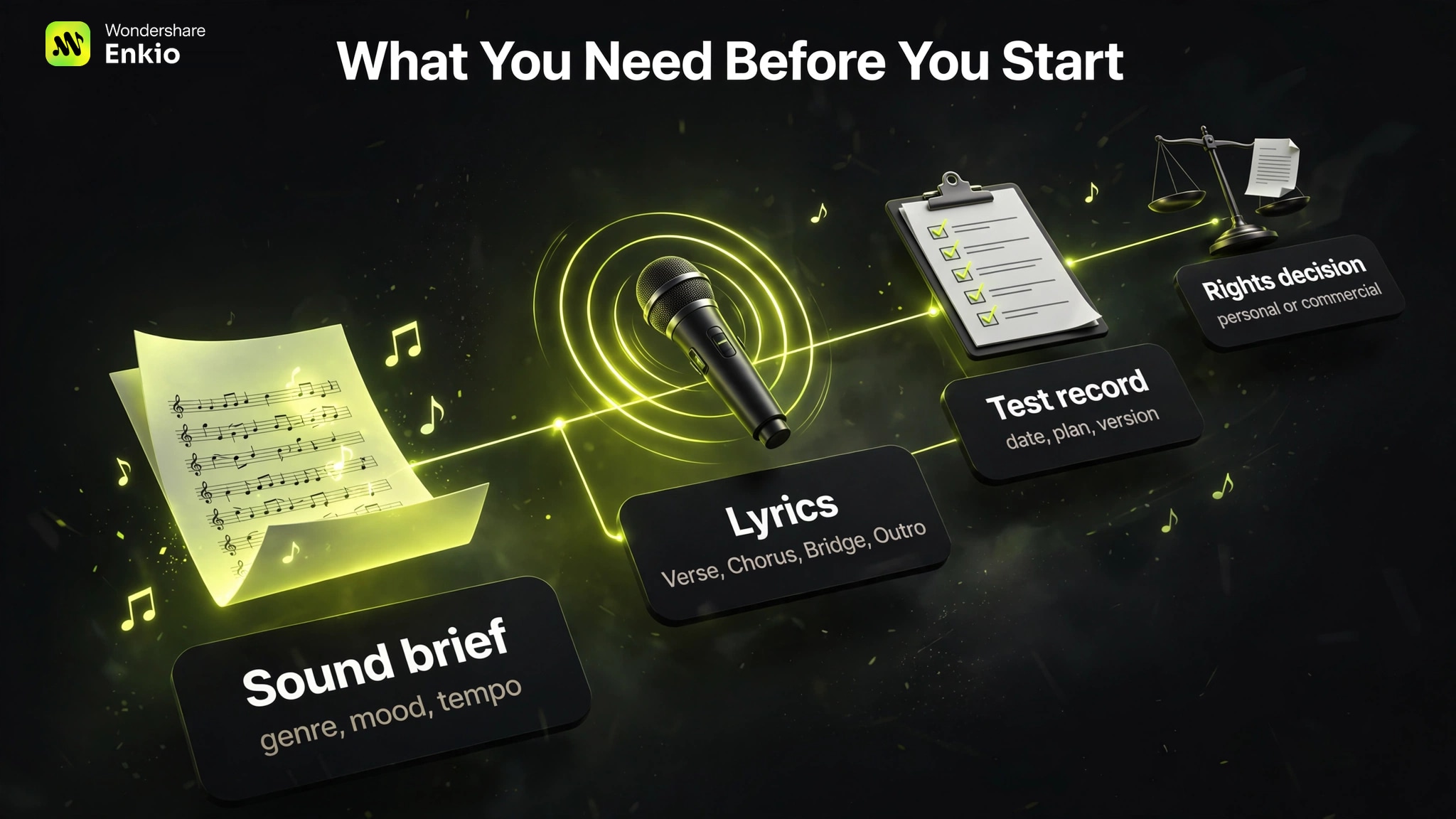
Prepare four items before opening the creation screen: a short sound brief, the lyrics or a lyric idea, a record of the plan and model used, and a publishing decision. If a finished song must become a video, also prepare a reference image or visual direction for the later MV step.
Our test was conducted by the editorial team at Enkio, which offers music and music-video tools. We used Suno's regular Free Plan. The generated share artifact was labeled V6 Mini. For model-family context beyond this specific workflow, see our Suno v6 Review.
What We Tested and What We Did Not
We ran the test on October 21, 2026 at about 1:00 p.m. New York time, using a Mac and Chrome in the US market. The account was on the Free Plan, the result was labeled V6 Mini, and we left optional controls at their defaults to observe Suno's automatic workflow.
We submitted one dream-pop task. The Style input described ethereal female vocals, shimmering guitars, lush synths, a slow tempo, and cinematic production. The Lyrics input contained labeled Verse, Chorus, Bridge, and Outro sections. One submission returned two tracks with the same title and cover but different melodies. They ran 2:39 and 2:44.
This was a workflow test, not a full performance review. We did not test all genres, repeat enough runs to measure reliability, compare paid models, or complete a line-by-line lyric audit. The broader Suno Music Generator Review keeps those evidence limits separate from plan and rights facts.
How to Generate a Song in Suno
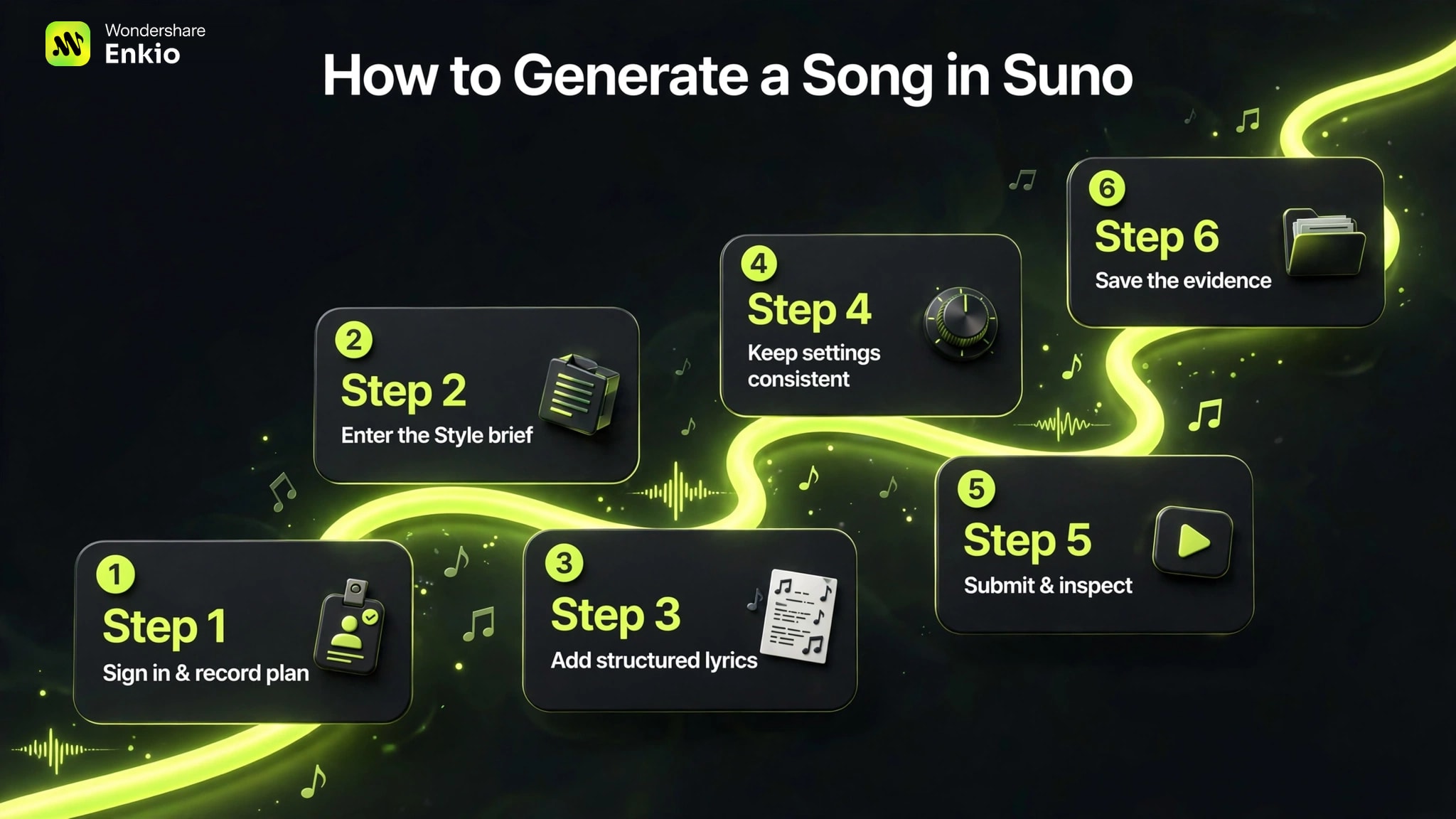
The observed process is six steps: confirm the account context, enter the Style brief, add structured lyrics, leave or document the remaining controls, submit, and save the evidence. Interface labels may change, so record what you actually see rather than forcing an older tutorial onto a newer screen.
Step 1: Sign In and Record the Plan Context
Open Suno, sign in, and note the plan shown on the account. For this test, the plan was Free, which Suno listed at $0 with 50 daily credits as of October 22, 2026. Do not assume that a current plan retroactively changes the rights attached to an older generation.
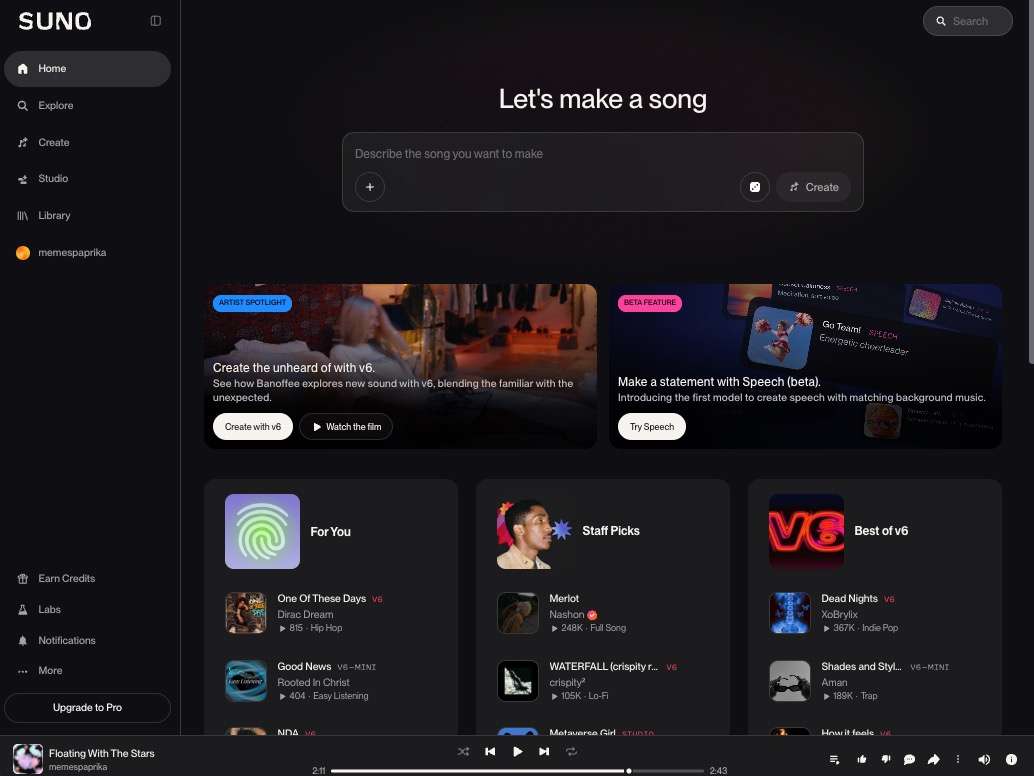
Also record the date, region, device, and browser. These details matter when comparing timing or interface changes later. We used US access, a Mac, and Chrome.
Step 2: Put the Musical Direction in the Style Field
Use the Style input for how the song should sound. The test prompt was:
> Dream pop ballad, ethereal female vocals, shimmering guitars, lush synths, slow tempo, cinematic production.
This brief names a primary genre, vocal character, instruments, pace, and production feel. It does not ensure those traits will appear exactly; it gives the generator a more inspectable direction than “make a good song.”
Step 3: Put the Words and Section Labels in the Lyrics Field
Paste the lyrics into the separate Lyrics input. We used section labels so the intended structure was visible before submission:
> [Verse 1] > Shadows on the water, dancing in the haze > Dreams are getting softer, lost within the maze > > [Chorus - wide harmony, lush reverb] > Take me to the moment, hold me in your light > Floating with the stars above, we own the night > > [Bridge - stripped, close vocal] > Silent wishes, sweet and true > Every melody is you > > [Outro - fade out]
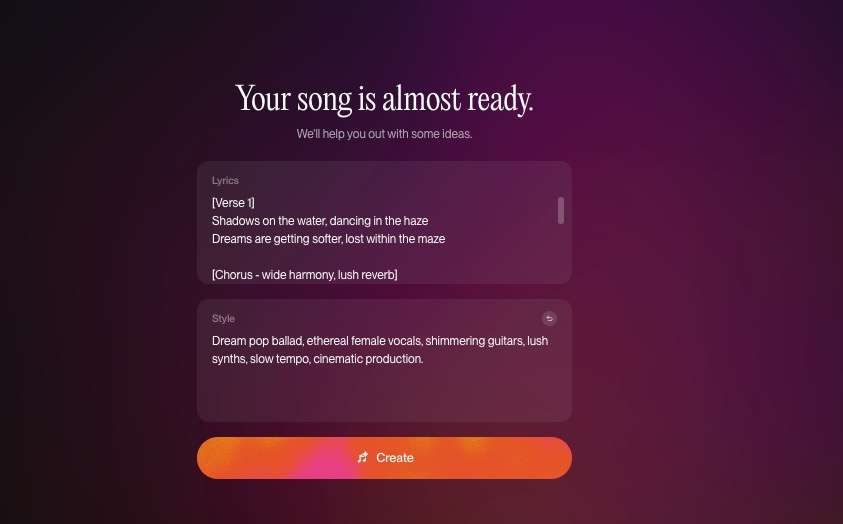
Keep a copy outside the platform. The share artifact retained the submitted lyrics as metadata, but that record does not establish that every word was sung correctly.
Step 4: Keep the Remaining Settings Consistent
We left the remaining controls at their defaults. That choice was deliberate: it let us observe the automatic result without adding another variable. If you change a setting, write it down before submitting so the result can be reproduced.
For a first comparison, consistency is more useful than aggressive tuning. Another platform may combine instructions in one box rather than separating Style and Lyrics. Preserve the same musical and lyrical meaning even when the interface differs. The AI Music Generator workflow we compared accepted the complete brief in one prompt field; that is an input-structure difference, not proof of better output.
Step 5: Submit Once and Inspect Every Candidate
Submit the request and wait for the result page to finish. Our one submission returned two candidates. They shared the title “Floating With The Stars” and the same cover image, but their melodies differed. The durations were 2:39 and 2:44.
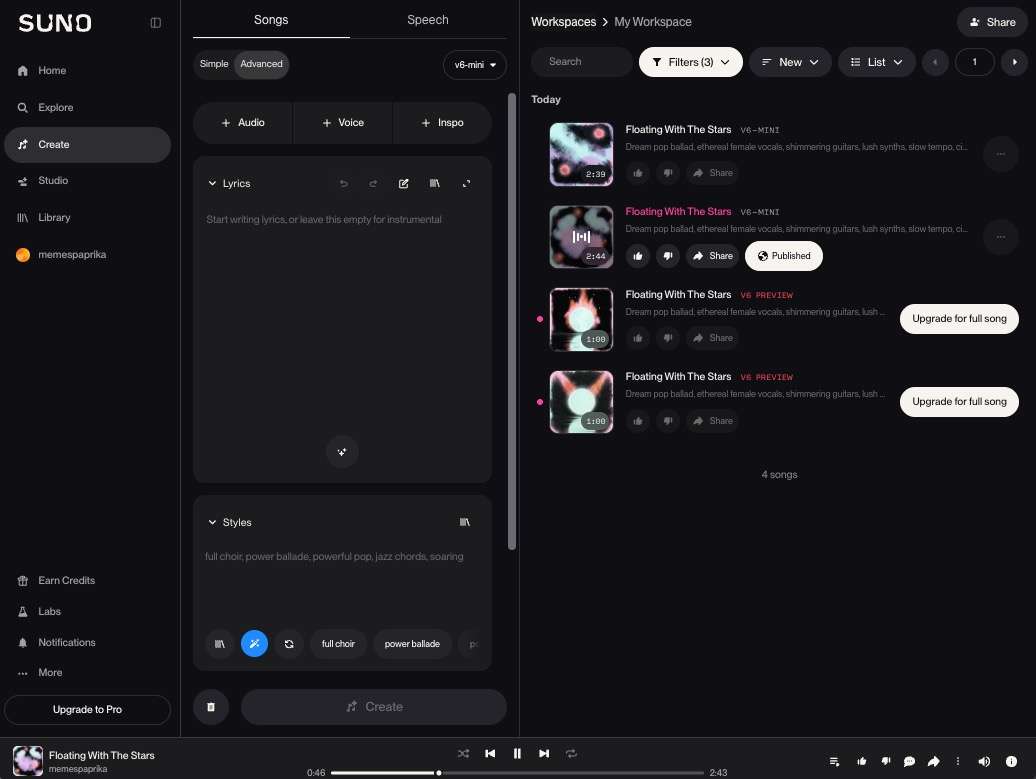
Treat “two candidates” as an observation from this run, not a permanent pattern. Listen to both before re-submitting. Record differences in melody, duration, arrangement, and whether the sections are recognizable. If you want a second music-only workflow to compare, keep the original inputs and follow How to Use Udio AI Music Generator, rather than rewriting the prompt between tools.
Step 6: Save the Result and Its Evidence
Keep the audio or available download, the share URL, the exact inputs, the result title, durations, plan, and version label. The Suno evidence retained for this guide is share ID UfJRrydvaEBEMIm8. Its page records one result at 159.28 seconds and labels the model V6-MINI.
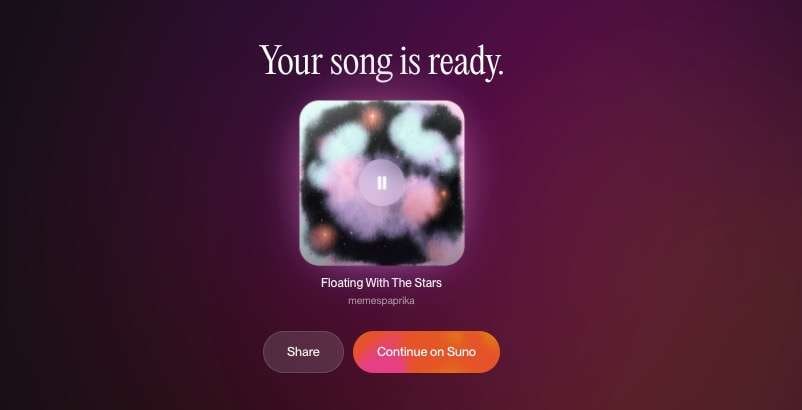
Those fields make the test traceable. They do not replace listening notes, prove lyric accuracy, or establish average generation speed. Save both the machine-readable metadata and your own review of the audio.
Create Music Video for Your Suno Songs
Copy and paste the suno song url into Enkio workspace, try to generate music video with Enkio for your suno songs.
What the Test Result Tells You
One completed run can answer operational questions: which inputs are separate, how many candidates appeared, whether credit use is visible, what evidence can be saved, and whether the output is long enough for the intended task. It cannot prove broad quality, speed, or reliability.
| Check | What we observed | What remains unproven |
|---|---|---|
| Input | Separate Style and Lyrics fields | Whether every account or future interface looks identical |
| Output count | Two candidates from one submission | Whether every submission returns two |
| Duration | 2:39 and 2:44 | Typical duration across genres and plans |
| Approximate wait | About 10 seconds | Average performance under controlled conditions |
| Evidence | Share page with title, duration, model, and lyrics metadata | Line-by-line vocal accuracy or audio-quality score |
The practical success check is simple: can you identify the intended genre and sections, and is at least one candidate suitable for the next step? If not, revise the input that corresponds to the problem. Change the Style brief for sound and arrangement direction; change the Lyrics field for wording and visible section structure.
How to Verify and Compare Your Result
Verification starts by separating facts from impressions. Facts include the plan, version label, number of candidates, durations, credit deduction shown, and share artifact. Impressions include which melody feels stronger, whether the vocal is convincing, and whether the production fits the brief.
Use the same checklist if you compare another tool:
1. Keep one style brief and one lyric sheet. 2. Record the product, plan, date, region, version, and settings. 3. Submit once to learn the workflow. 4. Save each output and the visible credit change. 5. Write what the artifact proves and what still needs repeated testing.
This first pass helps you decide whether more tests are worth the time. It does not justify a winner. Our guide to Alternatives to Suno AI Music Generator uses that boundary to organize tools by task rather than pretending every candidate received the same hands-on coverage.
Rights, Downloads, and Publishing
Decide the intended use before generation. As of October 2026, checked on October 22, Suno listed the Free Plan at $0 with 50 credits per day for personal, non-commercial use. Pro was listed at $10 per month or $96 per year with 2,500 monthly credits and 20 downloads per month. Premier was listed at $30 per month or $288 per year with 10,000 monthly credits and 60 downloads per month. Plans vary over time, and taxes may apply, so verify official pricing and terms at publication.
Suno's Help Center states that upgrading does not automatically grant commercial rights to songs previously made on the Free Plan. Commercial permission under a plan also does not establish copyright protection in every jurisdiction. Lyrics you wrote remain yours, but that is not the same as owning every right in the generated recording.
For a commercial project, preserve the generation date, active plan, applicable terms, and original inputs. If you are still choosing a platform, use a Best AI Music Generators shortlist only to identify candidates; check the current rights and export rules yourself before publishing.
Check plan terms before choosing a release workflow.
Review the current credits, features, and plan conditions, then save a dated record with the project.
Optional Next Step: Turn the Suno Song Into an MV
Suno completed the audio task in our test. If the deliverable is a music video, the next action belongs to a separate visual workflow.
Enkio can recognize a Suno audio URL and use that song as the starting point for its AI Music Video Generator. You can also generate music in Enkio first and continue from that track to an MV. These are replacement and complementary paths; they do not imply a partnership, endorsement, or data-sharing relationship between Suno and Enkio.
Use only audio, images, and other assets that you own or have permission to use. Enkio requires credits, features vary by plan, and the visual workflow adds its own review step. Choose it when the song is settled and the missing deliverable is the video.
Your song is ready. Plan the visual next.
Start from the existing Suno audio URL, add visual material you can use, and review the MV workflow before generating.
Frequently asked questions
Does a Suno share link make a Free Plan song commercial?
No. A share link makes an artifact accessible; it does not change the plan or rights that applied when the song was generated. Keep the share record for evidence, then check the applicable Suno terms before any monetized use.
Do section labels make Suno follow the structure exactly?
No. Labels make your intended structure explicit, but generation remains interpretive. Listen for the transitions and wording in the actual audio, and revise the relevant lyric section if the result does not follow the intended shape.
How do I compare Suno with a tool that has only one prompt box?
Keep the semantic inputs the same: the same style direction, lyrics, section labels, and default-setting rule. Combine them in the other tool's single field, record that interface difference, and avoid changing the creative brief at the same time.
Is one Suno run enough to choose a paid plan?
One run can reveal the interface and obvious blockers, but it cannot establish average reliability, lyric accuracy, genre range, or cost per finished song. Repeat only the scenarios that matter to your publishing plan, and keep the same test record for each run.
Conclusion
The tested Suno workflow is straightforward: document the plan, put sound direction in Style, put words and structure in Lyrics, keep the remaining settings consistent, inspect every returned candidate, and preserve the share evidence. In our Free Plan and V6 Mini run, one submission produced two different melodies at 2:39 and 2:44.
That result demonstrates the workflow, not universal quality or speed. Suno is not the right endpoint when you need note-level editing or a complete video in the same task. If the song is finished and the visual is next, Enkio can use the Suno audio URL as the starting point for an MV workflow.